
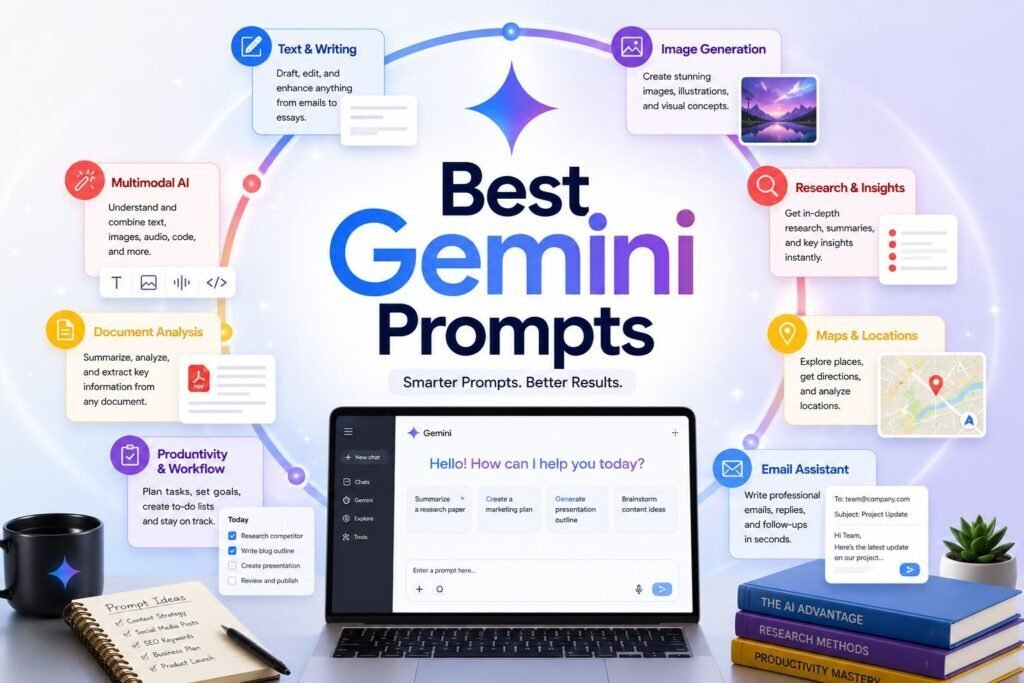
Gemini shines when prompts use its strengths: Google Workspace integration, search-grounded research, huge context, and image and audio input. This library collects prompts tuned for exactly that, plus a short method for getting its best answers and the common mistakes to avoid. Replace [variables] and iterate. See where Gemini leads in our Claude vs Gemini comparison.
How to Use
- In Workspace, reference your Docs, Gmail, and Drive directly (“summarize the attached doc”).
- For facts, ask Gemini to ground answers in current sources and cite them.
- Use its large context to analyze long files in one pass; verify key claims.
How to Get Gemini’s Best Answers
Gemini’s biggest edge is that it can act directly on your content, so a few habits pay off immediately. Give it the file, not a description — let it read the actual doc, sheet, email, or image rather than your paraphrase. Ask for sources on anything factual and open them, because grounding only helps when you verify. Be explicit about format (a table, a checklist, a word limit) so answers stay tight and usable. Iterate in place: in Workspace you can say “make it shorter” or “more formal” and it edits the same draft, so refine instead of restarting. And when it hedges or refuses, add specifics or ask what it needs, since ambiguity is the most common cause of a vague reply.
Productivity in Google Workspace
Gmail, Docs, and Sheets Side-Panel Prompts
These assume the side panel with access to the file in front of you.
Research
Long Documents and Data
Coding and Technical Help
Customization tip: paste the real error and code; Gemini’s suggestions are only as good as the context you give it.
Learning and Study
Multimodal
Planning and Everyday Life
Content Creation
Writing and Communication
Analysis and Summaries
Everyday Tasks
Worked Example: Give It the File
Gemini’s advantage shows most when you let it work on real content rather than a description. Compare “write a summary of my meeting” with opening the transcript in Docs and asking: “Summarize this meeting in a two-line overview, then list the decisions, the action items with owners, and any open questions, and draft a follow-up email confirming the next steps.” The second version produces something you can send in minutes, because Gemini is reading the actual conversation and acting inside the document where the work lives. Whenever you catch yourself pasting a paraphrase, stop and give it the file instead; the quality difference is immediate.
Customization Tips
- Gemini is strongest inside the Google ecosystem; use it where your data already lives.
- Ask for citations on anything factual, then verify.
- For creative writing, consider Claude; see the comparison.
What Makes Gemini Different
Gemini’s defining advantage is that it lives inside the tools many people already use every day. Within Google Workspace it can read and act on the actual email, document, or spreadsheet in front of you, which removes the copy-paste shuffle and keeps its answers grounded in your real content. It is also strongly multimodal, so you can hand it a screenshot, a photo of a whiteboard, or a chart and ask it to explain or transcribe what it sees. And because it can draw on search, it is well suited to questions where you want current information, provided you ask it to cite sources and you open them. Where it is less of a standout is deep, sustained document reasoning and a particular writing voice, areas where some people prefer other assistants. The smart move is to use each tool for what it does best rather than forcing one to do everything.
Deep Research and Large Files
Two of Gemini’s strengths reward a slightly different approach. For research, ask it to gather sources, then explicitly separate established facts from contested claims and cite each, so you can open the links and judge for yourself; treat it as a fast first pass, not a final authority. For large files and long transcripts, use its big context to analyze the whole thing in one go, but anchor it with a specific question and ask it to quote the exact passages behind its key points. Pairing Gemini with NotebookLM, which works only from sources you provide, is a strong free combination when you want answers grounded strictly in your own material rather than the open web.
A Quick-Start Checklist
Gemini rewards a few simple habits. Run through this list to get consistently better answers:
- Give it the file, not a description.
- Ask for sources on anything factual, and open them.
- Set the format with tables, checklists, or word limits.
- Iterate in place rather than starting over.
- Add specifics when it hedges.
Getting Started on the Free Tier
You do not need a paid plan to see Gemini’s value. The free tier handles the everyday prompts here well, and the fastest way to build the habit is to use it where your work already lives. Open a document you are drafting and ask it to tighten a section; open a busy inbox and ask it to summarize a thread and draft a reply; open a spreadsheet and ask what the numbers are telling you. Paid and Workspace plans mainly add deeper integration, higher limits, and the most capable models, which matter once you are leaning on it daily or working with large files. Start free, build the habit on real tasks, and upgrade only when you keep hitting a wall.
Common Mistakes to Avoid
- Describing a file instead of sharing it. Its biggest edge is reading your actual content; paraphrasing throws that away.
- Trusting facts without checking sources. Even with search, models misread and miss context.
- Vague, one-line prompts. Ambiguity is the top cause of generic answers; state the audience, format, and goal.
- Restarting instead of refining. In Workspace you can iterate on the same draft.
- Pasting sensitive data you should not. Follow your account and organization settings.
FAQs
Is Gemini good for research?
Yes, its search grounding and Deep Research modes are strong. Always verify cited sources for important work.
Which is better, Gemini or Claude?
Gemini for Google Workspace and free access; Claude for writing quality. Full breakdown in our Claude vs Gemini guide.
Do I need a paid plan?
Basic prompts work on the free tier. Paid and Workspace plans add deeper integration across Gmail, Docs, and Drive, higher limits, and the most capable models, which is where the productivity gains really show up.
Can Gemini access my private Google data?
Within Workspace it can work with your own files and email when you grant access, under your account’s privacy and admin settings. Review those settings, and avoid pasting sensitive third-party data you are not authorized to share.
Does Gemini work by voice and on mobile?
Yes, it is available across mobile and, in many setups, by voice, which is handy for quick questions and drafting on the go. For document-heavy work, the desktop Workspace side panel is more powerful.
Can I create custom, reusable Gemini setups?
Yes. If you repeat the same kind of task, you can save custom instructions or reusable configurations so you do not re-explain context every time. Perfect the prompt first, then save the version that reliably works.
What is the single best way to start with Gemini?
Open the side panel in a document or inbox you already work in and give it one real task, such as summarizing a thread and drafting a reply. Working on live content is where its integration advantage becomes obvious, and it builds the habit quickly.
Can Gemini help across an entire project, not just single tasks?
Yes. Because it works across your Google Workspace files, you can move a project through it end to end: capture notes in Docs, analyze figures in Sheets, and draft communication in Gmail, all with the same context close at hand. Keep the work inside the tools rather than copying text out.
Why did it get a recent fact wrong even with search?
Even with search access, models can misread or miss context. That is exactly why the prompts here ask for sources; open them for anything dated or high-stakes rather than trusting the summary alone.
Keep Exploring
Gemini plus NotebookLM (for your own sources) is a powerful free research pair. Save the prompts you reuse.