
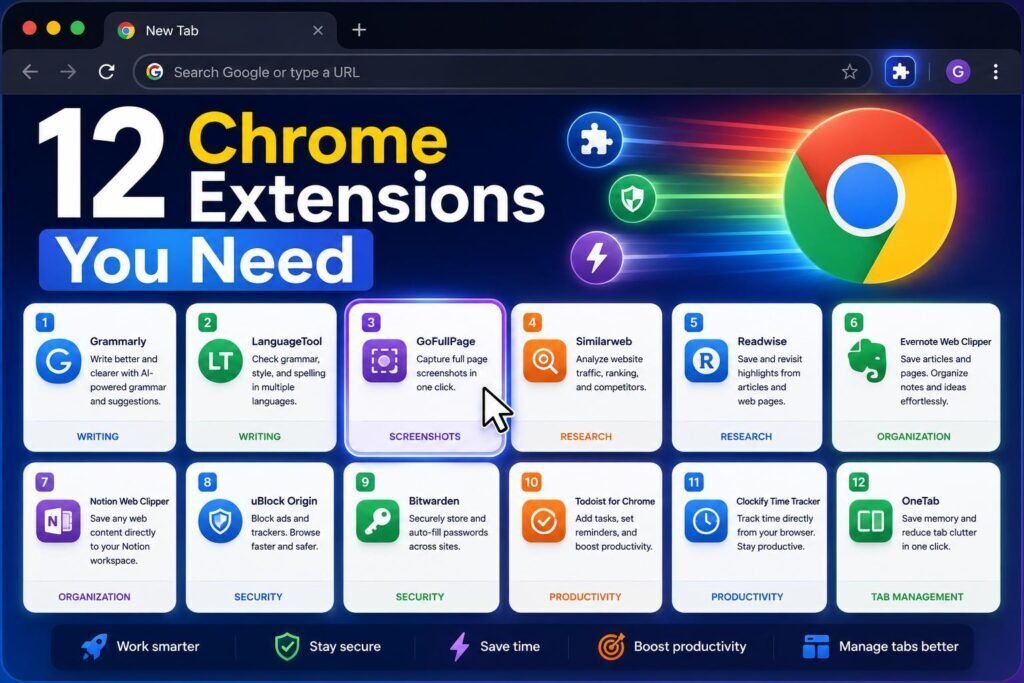
The right five extensions save an hour a day. The wrong twenty slow Chrome to a crawl and read your browsing history. This list sticks to extensions that are actively maintained, respected for privacy, and genuinely useful, with a note on what each one demands in permissions.
Quick answer: The core kit is uBlock Origin Lite (blocking), OneTab or a tab manager (tabs), Grammarly or a lighter checker (writing), a read-later clipper (Notion Web Clipper or Raindrop), and a focus blocker (LeechBlock NG). Add the rest only for jobs you actually have.
Key Takeaways
- Every extension is a performance and privacy cost. Audit quarterly; uninstall anything you have not clicked in a month.
- Chrome’s Manifest V3 changed the blocking landscape: uBlock Origin Lite is the current recommendation over classic uBlock Origin.
- Extensions get quietly sold to data brokers. Prefer open-source or big-vendor extensions, and check “last updated” dates.
- Your browser’s built-in features (tab groups, reading list) may already cover half this list.
The Lean-Toolbar Philosophy
This guide runs on one principle: extensions are employees, and every one on the payroll must earn its keep. Each active extension consumes memory on every page, adds milliseconds to every load, and holds standing permission to see some slice of your browsing. Five well-chosen ones repay that cost many times over; twenty mediocre ones invert the math, and the browser that was supposed to make you productive becomes the thing you wait on. The practical test is simple: if you have not deliberately used an extension in a month, it is costing you performance and privacy for nothing, and it goes. What survives that test, for most people, is the core kit above, a blocker, a tab tool, a writing checker, a capture tool, and a focus guard, plus one or two role-specific additions.
The List at a Glance
| Extension | Job | Price |
|---|---|---|
| uBlock Origin Lite | Content blocking, faster pages | Free |
| OneTab | Collapse tab chaos | Free |
| Workona | Workspace-grade tab/project management | Freemium |
| Grammarly | Writing checks everywhere | Freemium |
| Notion Web Clipper | Save pages to your workspace | Free |
| Raindrop.io | Visual bookmarks/read-later | Freemium |
| LeechBlock NG | Site blocking and focus rules | Free, open source |
| Dark Reader | Dark mode everywhere | Free, open source |
| Loom | Instant screen recording | Freemium |
| Bitwarden | Password manager | Free core, open source |
| Text Blaze | Text expansion/snippets | Freemium |
| Zapier / browser AI assistant | Automation from any page | Freemium |
Check the Built-Ins First
Before installing anything, spend ten minutes with what Chrome and its siblings already ship, because the browser has quietly absorbed half the historical extension market. Tab groups organize projects without an extension. The reading list covers basic read-later. Built-in password management is serviceable if you live in one browser (though Bitwarden wins across devices and platforms). Picture-in-picture, live captions, and per-site permissions all ship native now, and Chrome’s AI features increasingly summarize and assist in place. The rule: an extension must beat the built-in meaningfully to earn a slot. OneTab beats bare tabs for chronic hoarders, Raindrop beats the reading list for organized researchers, Bitwarden beats saved passwords for anyone on multiple devices, but confirm you need the upgrade rather than assuming, and your toolbar starts two sizes smaller.
Blocking and Speed: uBlock Origin Lite
The single biggest productivity upgrade is removing the noise from every page you load. Since Chrome’s Manifest V3 transition, uBlock Origin Lite is the actively supported version for Chrome. Pages load faster, trackers drop, and video sites stop assaulting you. Free, open source, minimal permissions in Lite mode. (Publisher’s note: whitelist sites you want to support, including ours.)
Tabs: OneTab and Workona
OneTab collapses fifty open tabs into a restorable list with one click, cutting memory usage and, more importantly, the guilt pile. Workona goes further for project workers: named workspaces with their own tabs, docs, and resources, so “switching projects” becomes one click instead of an archaeology dig. Chrome’s built-in tab groups sit between the two; try them first.
Writing: Grammarly (or Lighter Alternatives)
Grammarly checks everything you type in the browser: email, docs, CMS fields, LinkedIn. The free tier catches the embarrassing stuff. Privacy note: it processes your text on its servers, so check policy before using it with confidential material, and consider disabling it on sensitive sites. Lighter alternative: LanguageTool, with an open-source core.
Capture: Notion Web Clipper, Raindrop, Loom
Notion Web Clipper (or your workspace’s equivalent) sends articles and pages into the system where you already work, which beats bookmarking things you never revisit. Raindrop.io is the best standalone read-later manager with visual organization. Loom records your screen and camera from the toolbar, turning “let me write a long explanation” into a two-minute video link; see our remote team apps guide for how teams use it.
Focus: LeechBlock NG and Dark Reader
LeechBlock NG blocks or limits distracting sites with flexible rules (lunch hours allowed, workday blocked, delay-before-load friction). It is free, open source, and more configurable than most paid focus apps. Dark Reader applies proper dark mode to every site, which your evening eyes will thank you for.
Mechanics: Bitwarden and Text Blaze
Bitwarden is the open-source password manager we recommend: autofill kills the daily minutes lost to password resets, and the free tier is complete. Text Blaze expands snippets (addresses, email replies, code blocks) with shortcuts and variables; support teams and recruiters report it saving hours weekly.
Automation and AI in the Browser
Zapier’s extension triggers automations from any page; browser AI assistants (Chrome’s built-in Gemini features, or your assistant’s official extension) summarize pages and draft replies in place. Treat AI extensions with extra permission scrutiny: “read and change all your data on all websites” plus an AI vendor is a real trust decision, so install only official extensions from vendors you already use. Our automation guide covers the deeper stack.
The Quarterly Extension Audit
Because extensions change hands and go stale silently, a fifteen-minute quarterly audit is part of running a healthy browser. Open the extensions page and, for each entry, ask three questions. Have I used this in the last month? If not, remove it; reinstalling later takes seconds. Is it still maintained? Check the Web Store listing for the last-updated date and skim recent reviews, because a wave of one-star “what happened to this?” reviews is the classic sign of a sale or breakage. Do its permissions still match its job? Updates sometimes expand access, and a color picker that now wants your history on all sites has disqualified itself. Finish by confirming your blocker’s filter lists updated and your password manager is synced. This tiny ritual is what keeps a lean toolbar lean.
Browser Profiles: The Overlooked Multiplier
One habit multiplies everything else in this guide: separate browser profiles for separate lives. A work profile carries the productivity kit and work logins; a personal profile carries none of it; a clean third profile with zero extensions exists for sensitive tasks, banking, confidential documents, anything where no third-party code should be watching. Profiles isolate cookies, sessions, history, and extensions from each other, which means your writing checker never sees your bank, your focus blocker does not police your weekend, and a compromised extension in one profile cannot reach the others. Switching costs one click. For anyone who works and lives in the same browser, profiles deliver more privacy and focus per minute of setup than any single extension on this list.
Two Real-World Setups
A remote knowledge worker living in docs and meetings runs the core five plus Loom and Bitwarden: pages load clean, tab chaos collapses at day’s end, quick recordings replace half their explanatory emails, and passwords autofill everywhere. Seven extensions, all earning daily use. A support team lead adds Text Blaze with a shared snippet library, turning the fifty repetitive replies a week into shortcut keystrokes with personalization variables, and Workona to keep each product area’s tabs, docs, and dashboards one click apart. Nine extensions, and the two additions alone save the team hours weekly. Neither setup includes anything installed “just in case,” which is exactly why both browsers still feel fast.
Common Mistakes to Avoid
- Hoarding extensions. Past roughly ten, performance and privacy costs compound; audit quarterly and uninstall the unused.
- Ignoring the last-updated date. Abandoned extensions get sold and repurposed; check maintenance before trusting anything new.
- Granting permissions blindly. A screenshot tool does not need your browsing history; mismatched permissions disqualify an extension.
- Duplicating built-ins. Tab groups, reading list, and native password saving may already cover the job; confirm the upgrade is real.
- Running writing checkers on confidential pages. Server-side processing means sensitive drafts should get a clean profile or a disabled checker.
FAQs
How many extensions are too many?
Performance degrades noticeably past roughly ten active extensions, and each adds attack surface. Keep the daily drivers, uninstall the rest, and re-install when a real need returns.
Are Chrome extensions safe?
Mostly, but abandoned extensions get sold and turned into data harvesters. Prefer open source, check the last-updated date and recent reviews, and audit the permissions screen: a screenshot tool does not need your browsing history.
Do these work in Edge, Brave, or Arc?
Almost all Chromium-based browsers install Chrome Web Store extensions directly, so yes, this list applies. Note that some browsers ship built-in equivalents, Brave includes blocking natively, for example, so cross-check the built-ins section before duplicating a feature your browser already has.
What should I install first if I only pick one?
uBlock Origin Lite. It improves every single page you load, costs nothing, asks minimal permissions in its default mode, and its effect is instant and obvious. The rest of the kit earns its place task by task; the blocker earns it on the first browsing session.
What is the actual performance cost of extensions?
Each active extension loads code into pages and consumes memory per tab, and costs vary wildly: a well-built blocker often makes browsing faster overall by stripping heavier ad scripts, while a bloated extension can lag every keystroke. If Chrome feels slow, disable everything and re-enable one at a time for a day each; the culprit usually identifies itself quickly.
Should I use an all-in-one productivity extension instead of several?
Generally no. All-in-one tools bundle mediocre versions of each job with broad permissions, while the single-purpose picks here are each best-in-class with narrow access. The exception is when one vendor already runs your workspace, such as Notion, where its clipper naturally covers capture. Compose the toolbar; do not buy it prepackaged.
How do I sync my setup across computers?
Sign into the browser and extensions install themselves on every machine, though their settings often do not travel. For the ones with real configuration, LeechBlock rules, Text Blaze snippets, Workona spaces, use each tool’s own sync or export, and keep Bitwarden as the cross-device anchor since it syncs natively. Five minutes per new machine recreates the rest.
Are paid tiers of these extensions worth it?
Rarely at first. The free tiers of everything here cover the core job, and the paid tiers add capacity or team features: more Text Blaze snippets, Workona spaces, Raindrop backups. Upgrade the one you hit limits on, which for most people ends up being one subscription or none.
Can extensions conflict with each other?
Occasionally, especially two tools modifying the same thing: dueling blockers, multiple tab managers, or two extensions injecting into the same pages. Symptoms are odd page behavior or features silently failing. The lean-toolbar approach mostly prevents it, and when weirdness appears, disabling recent additions one at a time finds the conflict fast.
Our Verdict
Install the core five (uBlock Origin Lite, OneTab, a writing checker, a clipper, LeechBlock NG), add Bitwarden if you are somehow still typing passwords, and stop there until a specific job demands more. The best extension setup is the one you forget is running.
Related Articles
- AI Productivity Apps for Remote Teams
- Best Free AI Tools for Students
- Best Automation Tools for Small Businesses
Sources: Chrome Web Store listings and official extension sites, checked early 2026. Extension ownership and maintenance status change; re-verify before recommending.