
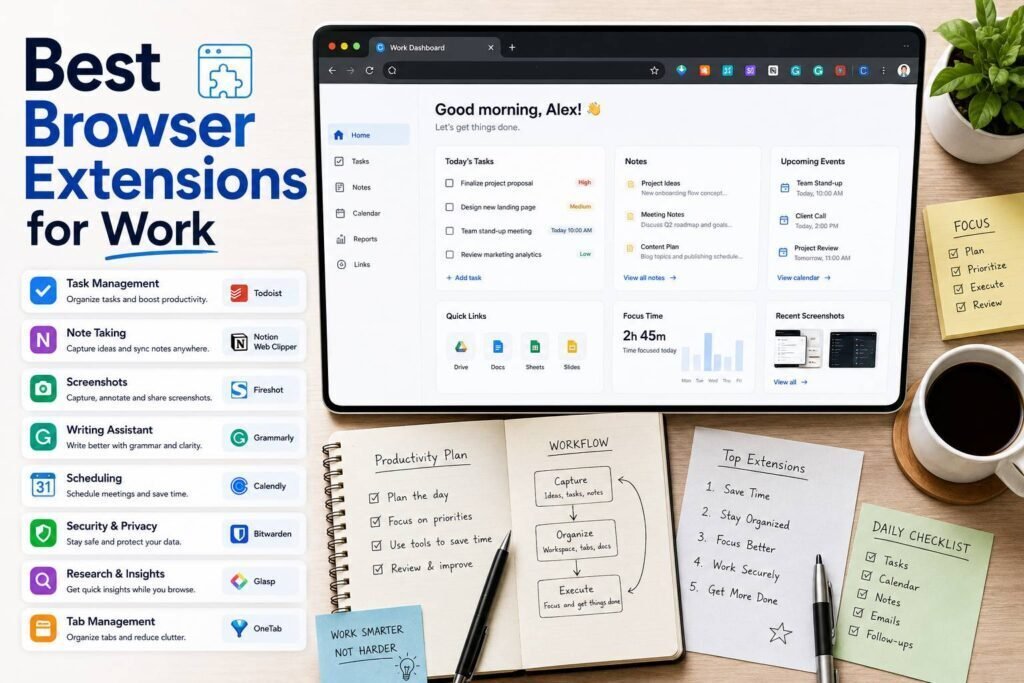
Writers, students, and researchers share a browser-based workflow: read a lot, save sources, write clearly, and cite correctly, all while resisting distraction. These extensions handle each part. Pair them with free AI tools from our student tools guide.
Key Takeaways
- Zotero Connector plus Grammarly cover citations and writing quality, the two biggest needs.
- Read-later and highlighting tools turn scattered reading into organized research.
- A distraction blocker is the unglamorous extension that protects your writing time.
- Verify citations from any AI tool against the real source; AI fabricates references.
The Research Workflow, Fixed at Four Points
Every writer, student, and researcher runs the same loop: find sources, read them, capture what matters, and turn it into cited writing, usually while the internet does its best to interrupt. Each stage has a characteristic failure. Sources vanish into a bookmark graveyard nobody revisits. Reading happens in cluttered tabs and leaves no trace. Notes scatter across apps, so writing means re-finding everything. And citations get formatted by hand at midnight before a deadline. The extensions in this guide are chosen because each repairs one specific point of that loop: capture tools that save sources with their metadata, readers that make long texts tractable, highlighters that turn reading into reusable notes, checkers that clean the prose, and a blocker that guards the writing hours. Build the loop once and every project after it moves faster.
The Essentials at a Glance
| Extension | Job | Price (verify) |
|---|---|---|
| Zotero Connector | Save sources and cite | Free, open source |
| Grammarly | Grammar and clarity | Free; premium paid |
| LanguageTool | Open-source writing checker | Free tier; paid |
| Notion Web Clipper | Save pages to your workspace | Free |
| Raindrop.io | Visual bookmarks/read later | Free tier; paid |
| Glasp | Highlight and save web/YouTube | Free tier |
| Readwise / Reader | Read later + highlight sync | Paid; trial |
| Google Scholar Button | Find papers and citations | Free |
| Just Read / reader mode | Clean, distraction-free reading | Free |
| LeechBlock NG | Block distractions | Free, open source |
Citations and Sources
Zotero Connector is the researcher’s essential: one click saves a source with its metadata, and Zotero formats bibliographies in any style. The Google Scholar Button finds scholarly versions and citations from any page. Together they end the evening-lost-to-formatting problem.
Writing Quality
Grammarly checks grammar, clarity, and tone across the web (note server-side processing). LanguageTool is the open-source alternative with a privacy-friendlier option. For drafting help, see our AI writing tools guide, and remember to verify any AI-suggested facts or citations.
Reading and Saving
Notion Web Clipper and Raindrop.io save articles into an organized system instead of a graveyard of bookmarks. Glasp and Readwise Reader add highlighting that syncs to your notes, turning reading into reusable research. Just Read and built-in reader modes strip clutter for focused reading.
Focus
LeechBlock NG (free, open source) blocks distracting sites during writing sessions with flexible rules. It is the least exciting and most valuable extension for anyone with a deadline.
Making Zotero Actually Work for You
Zotero deserves more than the one-line praise it usually gets, because the difference between installing it and using it well is enormous. The Connector’s one click saves a paper, book, or webpage with its metadata, PDF where available, and the date you captured it. The habits that compound: file each source into a per-project collection as you save it, add a two-line note about why it mattered while you still remember, and tag by theme so a semester of reading stays searchable. When writing, the word-processor plugin inserts citations as you type and rebuilds the bibliography in any style on demand, which is the moment all the small filing pays off. Sync is free within storage limits, so your library follows you across machines. It is the rare free tool that genuinely replaces evenings of drudgery with a keystroke.
From Highlights to Finished Writing
Capturing is only half the job; the other half is getting what you captured into your draft. The highlight tools here shine when you build a light bridge between them and your writing. Highlights from Glasp or Readwise sync into notes apps, where a ten-minute weekly review turns raw passages into your own summaries, the step that converts reading into understanding and, later, into citable material with the source attached. When drafting, work from those distilled notes rather than the original tabs, and let Zotero supply the formal citation. This pipeline, highlight, distill weekly, draft from notes, prevents the two classic failures: writing that plagiarizes by accident because notes and quotes blurred together, and research that evaporates because it never left the browser.
Recommended Setups
- Student: Zotero Connector + Grammarly + Google Scholar Button + LeechBlock. Free.
- Researcher: add Readwise Reader or Glasp for highlight management.
- Writer: Grammarly + a read-later tool + reader mode + a focus blocker.
Designing Focus Sessions That Stick
A blocker only works if its rules match how you actually fail, so configure LeechBlock like a behavioral tool rather than a wall. Set schedules around your real writing windows, block the specific sites that eat you, not the whole internet, and use graduated rules: a delay page that asks “do you need this now?” often beats a hard block, because it interrupts the reflex without provoking the workaround. Allow research-necessary sites even during sessions, and give yourself honest break windows so the system feels sustainable. Pair the blocker with reader mode for the sources you do open, and the browser stops being the enemy of the deadline. The pattern that works is not maximal restriction; it is removing the three reflexive distractions during the two hours that matter.
A One-Evening Setup Plan
The whole stack installs and configures in a single evening. Start with Zotero: install the desktop app and Connector, create a collection for your current project, and save your first five sources to feel the click-to-captured flow. Add the Scholar Button and test it on a topic you know. Install your writing checker and set its dialect and tone once. Add your read-later tool and clip three articles you have been meaning to read, filing each as you save. Finally, configure LeechBlock with your two worst distractions and your real working hours. Then run the system for two weeks before adding anything, and let repetition, which capture you reach for, which reports you reread, decide any additions. Most people discover this starter set is not a starting point but the whole toolkit.
Where AI Fits, Carefully
AI belongs in this stack as an accelerant with guardrails. An assistant extension summarizes a long article to help you triage whether it deserves a full read, explains a dense passage three ways, and drafts around your own notes once the research exists. What it must not do is supply the research itself: models fabricate realistic-looking references, and a fabricated citation in academic work is a failing offense. The working rule is direction-of-trust: AI may point you toward sources you then verify and save through Zotero, and it may polish prose you wrote from verified notes, but everything that ends up cited must have passed through your own eyes in the original. Used inside that boundary, AI plus this toolbar is the fastest honest research workflow available; outside it, the speed becomes a liability. Our student tools guide covers the full AI side.
Two Real-World Scenarios
A graduate student writing a literature review installs Zotero Connector, the Scholar Button, Glasp, and LeechBlock, all free. Every paper gets saved with metadata and a two-line note, highlights sync weekly into a notes app, and the review drafts itself from distilled notes with citations inserted by Zotero, no midnight formatting. A freelance writer juggling three clients runs Grammarly, Raindrop with per-client collections, reader mode, and a blocker scheduled around morning drafting hours. Research clips file themselves by client, drafts get checked as they are written, and the morning stays protected. Different work, same principle: a small toolbar that mirrors the four stages of the loop, capture, read, write, focus, with nothing extra.
Common Mistakes to Avoid
- Saving without organizing. A read-later pile you never triage is a bookmark graveyard with better fonts; file and tag as you save.
- Highlighting everything. If half the page is yellow, nothing is; highlight only what you would want back in a draft.
- Formatting citations by hand. Zotero does it perfectly in any style; midnight bibliography formatting is a solved problem.
- Trusting AI-suggested references. Verify every citation against the real source; fabricated references fail assignments and worse.
- Skipping the focus blocker. The least glamorous extension protects the hours all the others exist to serve.
FAQs
What is the best citation extension?
Zotero Connector, free and open source, with excellent citation-style support.
Can I trust AI tools for citations?
Use them to find sources, never to invent them. AI fabricates realistic-looking references; always verify against the real source before citing.
Are these free?
Most have strong free tiers. Zotero, LanguageTool, and LeechBlock are free and open source. A student can run the complete recommended setup without spending anything, which is deliberate: the paid upgrades in this category buy convenience, while the core research workflow has excellent free coverage.
Do highlighting tools work on PDFs and paywalled journals?
Zotero stores and annotates PDFs directly, which covers most academic reading. Web highlighters vary on PDFs and cannot reach content behind logins they do not have; for paywalled journals accessed through a library, save the PDF into Zotero and annotate there. The workflow stays identical, only the capture point moves.
Readwise Reader or Glasp: which highlighting tool?
Glasp’s free tier covers web and video highlighting with social discovery, which suits students well. Readwise Reader is paid but adds a first-class read-later app, sync from many sources, and spaced resurfacing of your highlights, worth it for professional researchers and heavy readers. Start free with Glasp; upgrade when your reading volume makes resurfacing valuable.
Grammarly or LanguageTool for academic writing?
Both catch the mechanical errors that cost marks. Grammarly’s suggestions are more extensive; LanguageTool is open source, supports more languages, and offers a privacy-friendlier setup, which matters for unpublished research. Either works; run one, not both, and remember a checker polishes prose but does not verify facts or arguments.
How do these extensions help with avoiding plagiarism?
Indirectly but powerfully: clean source capture and clear separation between quotes and your own notes prevent the accidental plagiarism that comes from messy research, and Zotero ensures every borrowed idea carries its citation. The tools handle provenance; the academic integrity, writing your own analysis, remains your job.
Can I use this stack on a university computer or locked-down browser?
Mostly yes: these extensions install from the standard web stores without admin rights in most environments, and Zotero’s web library works even where the desktop app cannot be installed. Where extensions are blocked entirely, reader modes and web apps for Raindrop, Glasp, and Zotero cover the essentials from any browser.
How is this different from just using bookmarks and a notes app?
Metadata and flow. Bookmarks store a URL; Zotero stores the author, date, and citation-ready record. A notes app stores text; a synced highlighter stores the passage with its source attached. The extensions do not replace your notes app, they feed it with provenance intact, which is exactly what deadline-day writing needs.
What about mobile: can I keep this workflow on my phone?
Partially. Most browser extensions are desktop-only, but the underlying services travel: Zotero, Raindrop, and Glasp all have mobile apps or share-sheet saving, so capture continues from your phone and everything lands in the same libraries. Do the heavy reading, filing, and writing on desktop where the full toolbar lives.
Bottom Line
Zotero Connector and Grammarly are non-negotiable for anyone who writes and cites; add a read-later or highlighting tool to organize research and a focus blocker to protect your time. For the AI side of studying and writing, see our free AI tools for students guide.
Related Articles
Sources: Chrome Web Store listings and official sites, checked early 2026. Verify maintenance status and pricing before relying on any extension.